
In This Blog:
- ➤ What is the Difference Between El Niño and La Niña: Two Seasons, Two WFH Modes?
- ➤ What are the Effects of El Niño? (First to You, Then to Your Equipment)
- ➤ Which Is Better: AVR and UPS and Surge Protector
- ➤ What are the Effects of La Niña on your WFH Equipment?
- ➤ Why Your Client Notices How You Handle These Seasons
- ➤ The Professional, Weather-Ready Pinoy Specialist and Remote Staff
- ➤ FAQs
- ➤ Two Seasons, Two WFH Equipment Protection Plans That Hold Up
You’ve come out of one weather pattern unscathed. Survived. Now, you’re walking into its opposite.
PAG-ASA data indicate that El Niño typically weakens and ends around March or early April, before shifting into an ENSO-neutral phase that can later develop into La Niña. No respite.
But when you’ve just propped up your WFH space or your entire home to brave one extreme weather pattern, how do you prepare your equipment for the next? What’s there to know about AVR vs UPS vs surge protectors?
Looking at El Niño and La Niña as one long cycle is the wrong way to ready your WFH setup (and mindset). That’s how articles online approach this topic.
But not this article. Let’s begin by untangling what happens during the two major climate phenomena in the Philippines, and how you should climate-proof during each one.
An AVR (Automatic Voltage Regulator) stabilizes fluctuating voltage before it reaches your computer, helping protect sensitive components from under- or over-voltage. Whether you need one depends on your area’s power quality: if your home experiences frequent voltage fluctuations or unstable electricity, an AVR can help protect your PC, while homes with stable power or a quality UPS with built-in voltage regulation may not require a separate AVR.
What is the Difference Between El Niño and La Niña: Two Seasons, Two WFH Modes?
Both are phases of the El Niño–Southern Oscillation (ENSO), on opposite ends of it. El Niño is characterized as the “warm phase.” It results in hotter temperatures (hotter than average). That, in turn, leads to reduced rainfall and drier conditions.
La Niña is its inverse and is the cooler, wetter phase of ENSO. It brings rainfall and more frequent storms or tropical cyclones.
How the Two Affect WFH Setups and Households
During El Niño, prolonged heat draws in its wake an increase in electricity demand. Hotter weather means more people using more cooling equipment, and for more hours within a day.
Quite the contrast with La Niña. Electric fans and air conditioners are generally no longer used when this phenomenon arrives. Instead, the hazards it comes with, besides high humidity (persistent, wetter conditions raise the amount of moisture in the air), are heavy rainfall and typhoons.
These can damage infrastructure and knock out power for days, depending on the storm duration and intensity.
El Niño’s damage comes from heat and grid demand strain. La Niña’s, from humidity and storm-side infrastructure failure.
Related Read: Six Tips to Keep Your Gadgets Safe From Summer Heat.
In the Philippines, a basic UPS (Uninterruptible Power Supply) suitable for a single PC or laptop typically costs around ₱2,500 to ₱5,000, while higher-capacity models for gaming PCs, workstations, or multiple devices usually range from ₱6,000 to ₱15,000 or more. Entry-level 500–650VA units start at about ₱2,950, while 850–1100VA models commonly sell for ₱5,000 to ₱9,000, depending on the brand and battery capacity.
What are the Effects of El Niño? (First to You, Then to Your Equipment)
PAGASA’s heat index levels classify it in four categories. Each one carries a health warning, but the same thresholds are directly related to impact on your equipment, which we discuss after the table.
Why Knowing the Heat Index Matters in Protecting Your Equipment
Laptops generally have a safe ambient operating range of 10°C to 35°C. Lenovo calls this the “optimal environment” in which to use your computer, and most laptop manufacturers say the same thing.
In the table above, that range falls in the “Caution” category. The first and lowest one.
Once your room or WFH office rises into the Extreme Caution level or higher, your indoor environment’s already outside that range, not yet accounting for the extra heat your equipment generates while running, and the added heat your body has to cope with.
What is the Normal Temperature for a Laptop? (How Much Heat is Too Much for a Laptop?)
This “normal temperature” for laptops is called “thermal limit,” and Intel and AMD Ryzen processors carry their own. For Intel’s newer chips, safe mode is between 100°C and 105°C (component level). AMD’s newer chips tap out at a lower range: 89°C to 95°C.
Any processor that moves closer to its thermal limit throttles. In other words, it automatically slows itself down and “waits” until its temperature goes back down to normal.
Call it a safety feature. The tricky part is— your machine decides to slow down without giving you a warning.
Here’s how you’ll usually notice a heat-related slowdown:
- Repeated tasks that normally take a certain duration (and almost the same each time) take noticeably longer to complete
- Internal laptop fans run constantly, even during light work
- The laptop’s underside or keyboard areas feel hot once touched (whether you’re doing heavy or light work)
- Laptop performance improves when you stop using it for a few minutes, but then slows down again when you get back to your tasks
Illustration: Jessica, a WFH customer support representative in Cebu, handles tickets for an Australian company. During a certain week, PAGASA sent a notification blast about the weather in her region going up to the Danger level. She let it be.
Then, in one of those days, she started noticing that she was working more slowly than usual. But it wasn’t her. Her laptop had been throttling for hours. It was also heating up. During that time, she missed an important response-time target and had to explain it to her team lead after the fact.
How to keep your laptop cool (and prevent heat-related slowdowns):
- Don’t put your laptop on soft surfaces (beds, cushions, carpets, etc); these block your laptop’s vents and cause it to overheat faster
- Keep it out of direct sunlight, including near a window during peak afternoon hours
- If you’re only running the air conditioner for short periods, give your laptop a few minutes to adjust after the room starts warming up; pause on the processor-heavy tasks for a moment (or close multiple open tabs)
Click on the link if you’re trying to stay cool without air conditioning in the Philippines, for science-backed tips about how to cool your home sans AC.
Which Is Better: Surge Protector vs AVR vs UPS
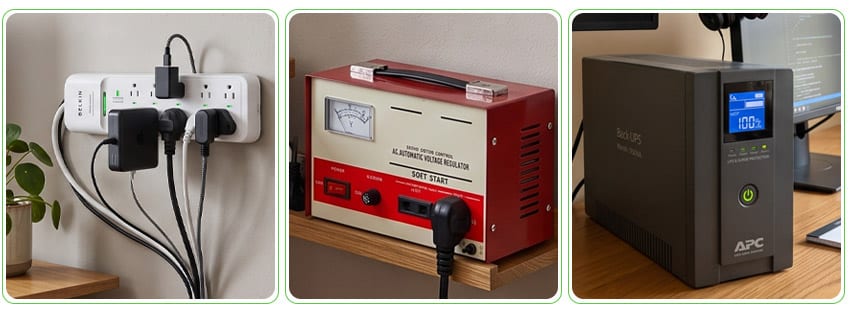 Three devices assumed to be interchangeable, when each one actually protects a specific problem. Here’s what you need to know about their differences.
What is a Surge Protector?
A surge protector does nothing after a “brownout.” It’s more for protection via prevention, by absorbing voltage spikes caused by lightning or grid switching. It then diverts the excess to prevent it from reaching your equipment.
Surge Protector Price Philippines: From ₱200 – ₱1,500
What is AVR Power Supply (Automatic Voltage Regulator for PC)
AVR meaning— it stabilizes fluctuating voltage. Inconsistent grids, and in this case, weather-related power disturbances caused by La Niña. It keeps your equipment supplied with a steady voltage even when the incoming power isn’t. Like a surge protector, an AVR PC device doesn’t keep your equipment running once the power cuts out entirely.
AVR Price Philippines: From ₱250 – ₱3,000+
What is an Uninterruptible Power Supply (UPS for Computer)?
It contains a battery, which makes a UPS different from a surge protector and an AVR. When power goes out, a UPS keeps your equipment on for a period of time (usually depending on the UPS’s battery capacity and the power draw of your devices).
Or at least long enough for you to save your work and shut down properly instead of losing everything when you’re caught in the middle of tasks.
Most desktop UPS units or UPS PC gaming units also include a built-in surge protector.
Uninterrupted Power Supply price Philippines: Computer UPS price is at ₱1,600 – ₱8,500+
If you can only invest in one, the UPS is the one that protects you from the thing that stops your work: a complete power outage. But if you’re able to purchase both a UPS and either an AVR or a surge protector, go ahead.
What are the Effects of La Niña on your WFH Equipment?
Two things to keep in mind when thinking about how La Niña makes its mark on your home office setup: moisture in equipment and power supply disruption through storm damage.
How Does Humidity Affect Electronics and Other Devices?
In high humidity, condensation forms inside a device when it’s suddenly exposed to warmer, moisture-rich air after being in an air-conditioned room. Over time, moisture exposure corrodes internal electronic circuitry: circuit boards, connectors, solder joints, and electrical contacts.
The effects of heat damage (from El Niño) are easier to spot. You know it’s happening when your device slows down. You also feel your device heat up. But humidity damage? Nothing like that.
It takes weeks of a drive or connector looking and working fine before it starts choking up:
Missing keystrokes when you type. Charging inconsistencies (battery levels don’t increase steadily while charging, or they stop charging while plugged in). Your Wi-Fi disconnecting for no reason. USBs or headphone jacks that don’t get recognized by your device anymore.
Storm Damage and Your Power Supply
La Niña’s power interruptions are linked to a different source than officially-mandated rotating brownouts that result from El Niño. Typhoons and heavy rain during La Niña cause physical damage. They can down transmission lines and flood substations. Fallen trees destroy power infrastructure.
An act of nature can’t be quelled by any human means. What you can do is prepare for it. Have a UPS or ordered a backup power source from Shopee? Good. But they’re solutions for an outage. The problem of humidity damage as a whole is something else.
How to protect your laptop in high humidity:
- Store equipment not in daily use with silica gel packs (other similar desiccant works)
- If you need to move your laptop from an air-conditioned room to a much warmer, more humid one (room with AC to room without AC), let it sit for a few minutes (off or in sleep mode) before using it heavily
- If your device has been sitting in a hot, humid room while powered off, let it adjust for a few minutes after bringing it into an air-conditioned room before turning it on
- Keep device accessories, like spare drives, chargers, or peripherals, in a sealed container during the wettest months rather than left out in open air
Illustration: Miggy is a software developer in Bulacan. He plugged in an external hard drive after several days of heavy rain and humidity. His drive got read errors when it hadn’t even been used that long. Nothing was spilled on it.
Miggy’s room had simply been soaking up all that high humidity for long enough that moisture had seeped its way through the drive’s internal contacts and had been left that way for weeks.
Why Your Client Notices How You Handle These Seasons
It might not seem like it, but knowing how to handle El Niño and La Niña, and more importantly, how you prepare your WFH setup to withstand their impact, says a lot about you. About how you are as a remote professional.
A Filipino remote professional who has a UPS (and/or a surge protector or an AVR) is someone who thinks ahead. Someone who wants to prepare for disturbances in workflows, even against the forces of nature.
Is it good for you? Of course it is. One less hassle to take care of when high temperatures or tropical cyclones sweep through, as they do each year, across the Philippines and its surrounding regions.
More than that, it subtly tells your foreign clients you’re reliable. You take your work as seriously as they conduct their business.
You won’t have to make up excuses every time a power interruption stalls project submissions because you’ve got backup power. You won’t have to explain why all the day’s work went missing because you were able to save it before a full-on outage.
You’ll also be prolonging the lifespan of your equipment, minimizing wear by reducing the strain caused by erratic voltage conditions.
The Professional, Weather-Ready Pinoy Specialist and Remote Staff
You’ve come out of one weather pattern unscathed. Survived. Now, you’re walking into its opposite.
Already embody this kind of work ethic? Then better opportunities await you with Remote Staff. We match skilled Filipino professionals who maintain consistent delivery for international clients regardless of the season.
We support our remote specialists so that whenever El Niño and La Niña decide to rage through, our team helps you cross over hurdles that obstruct your way to a fruitful remote career.
FAQs About the Use of AVR or UPS or Surge Protector
What’s the difference between a brownout and a blackout?
In the Philippines, “brownout” is the term used for any kind of partial power interruption, whether caused by nature, utility maintenance, or damage to utility infrastructure. A “blackout” is a complete power interruption. Although in many cases, both terms are used interchangeably.
For remote professionals who work with foreign clients, it’s best to use the phrase “power outage” since “brownout” is less widely used elsewhere.
Does a surge protector protect my laptop during a brownout? (Will a surge protector extension help during a brownout?)
A surge protector protects your laptop in terms of preventing voltage spikes, but doesn’t serve as a backup power source during brownouts. Since it doesn’t have a built-in battery, it stops working the moment power is cut completely. It doesn’t provide backup power, and won’t keep your devices running in an outage.
What heat index level is considered unsafe for working indoors?
PAGASA classifies 42°C to 51°C as Danger level (level 3 out of 4). On this level, heat exhaustion is likely, and continued exposure may lead to heat stroke.
Anything at 52°C or above is Extreme Danger (level 4), and is considered a medical emergency. These thresholds apply to indoor spaces without adequate cooling just as much as they do outdoors.
How do I protect stored equipment from humidity damage?
Keep unused devices, drives, and peripherals or accessories in a sealed container with silica gel packs or another desiccant. Avoid leaving equipment out in the open air during extended periods of high humidity. When moving devices from a hot and humid room to a cooler one (room with AC), let it sit for a while before powering it back on.
Extra Read: How to earn dollars online despite the Middle Class Squeeze, as well as rising costs and inflation in the Philippines.
Two Seasons, Two WFH Equipment Protection Plans That Hold Up
El Niño and La Niña shouldn’t be taken as one season. They don’t cause damage to a work-from-home office the same way.
High temperatures throttle processors and cause grid strain with increased demand. The other, with heavier rainfall, raises humidity, which wears out equipment over time. That same heavy rainfall turns into storms that damage power infrastructure.
So, it’s not just one solution that safeguards your workstation from these two major weather phenomena. Prepare for both.
The right remote setup is understanding what you’re protecting against and having the right devices for each one’s possible impacts.
Ready to create a WFH setup that can handle whatever the season brings? Reach out to Remote Staff today.