Welcome to Remote Staff!
We’re pleased to confirm that your contract has been acknowledged, and we’re excited to have you on board.

We’re pleased to confirm that your contract has been acknowledged, and we’re excited to have you on board.

 Remote Staff Email (IONOS)
This email will be used for all official Remote Staff communication. The email credentials will be included in the welcome email
 Login URL: https://mail.ionos.com
Email Address: XXXREMOTESTAFFNETEMAILADDRESS
Temporary Password: XXXPASSWORD
Please bookmark the login page for daily use.
Notes
*Using company-authorized emails protects you and your client’s data. A critical mandate to our commitment to Data Privacy and Protection.
 Remote Staff Portal (RS Portal)
The Remote Staff Portal (RS Portal) is your main platform for managing work-related records and requests. The RS Portal and DIWA use the SAME login credentials. Any password changes must be done through the RS Portal login.
The RS Portal is used for:
Portal URL: https://staff.remotestaff.com/
Username: XXXREMOTESTAFFNETEMAILADDRESS
Password: Set password using instruction below
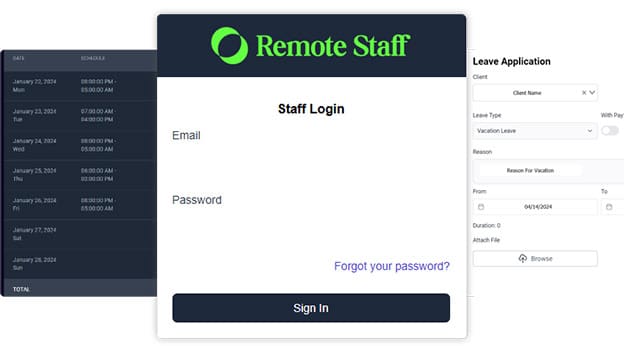
Note: Once you change your password in the RS Portal, the same password will automatically apply to DIWA.
 DIWA – Work Monitoring Tool
DIWA (Diary of Work Activity) is used to track attendance and online visibility. DIWA uses the SAME username and password as the RS Portal.
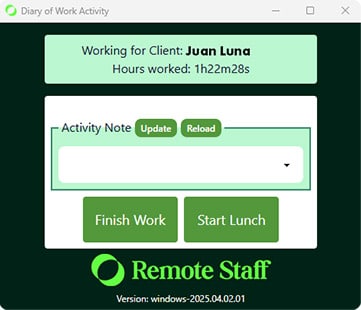
Important Reminder:
Please install and test DIWA before your first day of work.
 Zoom Account Setup
Zoom is used for meetings when invited by your CRE or client.
Zoom Email Address: XXXREMOTESTAFFNETEMAILADDRESS
Setup Guide: GUIDE
 Microsoft Teams
Microsoft Teams is the main communication tool used at Remote Staff.
 Important: Guidance Program for Government Contributions
This program supports SSS, PhilHealth, and Pag-IBIG contributions. Eligible participants may receive additional funds on top of their monthly rate.
Please follow these steps carefully:

Log in to DIWA and click “Start”

Be online at least 10 minutes before your scheduled start time (Your work schedule follows what is stated in your contract)

Log in to Microsoft Teams

Your HR Business Partner will contact you via Teams and introduce you to your client.
To ensure clarity and protect all parties, any discussions regarding compensation, attendance policies, or work setup must be coordinated through Remote Staff.
Direct negotiations with the client on these matters are not permitted, as they fall under the terms of your agreement with Remote Staff and may result in contractual consequences.
CONFIDENTIALITY NOTICE
This email and any attachments are confidential and intended solely for the recipient. If received in error, please notify us immediately and delete it from your system.
Remote Staff Email (IONOS)This email will be used for all official Remote Staff communication. The email credentials will be included in the welcome email
Login URL: https://mail.ionos.com
Email Address: XXXREMOTESTAFFNETEMAILADDRESS
Temporary Password: XXXPASSWORD
Please bookmark the login page for daily use.
Notes
*Using company-authorized emails protects you and your client’s data. A critical mandate to our commitment to Data Privacy and Protection.
Remote Staff Portal (RS Portal)The Remote Staff Portal (RS Portal) is your main platform for managing work-related records and requests. The RS Portal and DIWA use the SAME login credentials. Any password changes must be done through the RS Portal login.
The RS Portal is used for:
Portal URL: https://staff.remotestaff.com/
Username: XXXREMOTESTAFFNETEMAILADDRESS
Password: Set password using instruction below
Note: Once you change your password in the RS Portal, the same password will automatically apply to DIWA.
DIWA – Work Monitoring ToolDIWA (Diary of Work Activity) is used to track attendance and online visibility. DIWA uses the SAME username and password as the RS Portal.
Important Reminder:
Please install and test DIWA before your first day of work.
Zoom Account SetupZoom is used for meetings when invited by your CRE or client.
Zoom Email Address: XXXREMOTESTAFFNETEMAILADDRESS
Setup Guide: GUIDE
Microsoft TeamsMicrosoft Teams is the main communication tool used at Remote Staff.
Important: Guidance Program for Government ContributionsThis program supports SSS, PhilHealth, and Pag-IBIG contributions. Eligible participants may receive additional funds on top of their monthly rate.
Please follow these steps carefully:
Log in to DIWA and click “Start”
Log in to Microsoft Teams
Be online at least 10 minutes before your scheduled start time (Your work schedule follows what is stated in your contract)
Your HR Business Partner will contact you via Teams and introduce you to your client.
To ensure clarity and protect all parties, any discussions regarding compensation, attendance policies, or work setup must be coordinated through Remote Staff.
Direct negotiations with the client on these matters are not permitted, as they fall under the terms of your agreement with Remote Staff and may result in contractual consequences.
CONFIDENTIALITY NOTICE
This email and any attachments are confidential and intended solely for the recipient. If received in error, please notify us immediately and delete it from your system.